
Common Causes of Laptop Logic Board Failure: A Complete Guide
Understanding the Core: What Is a Logic Board?
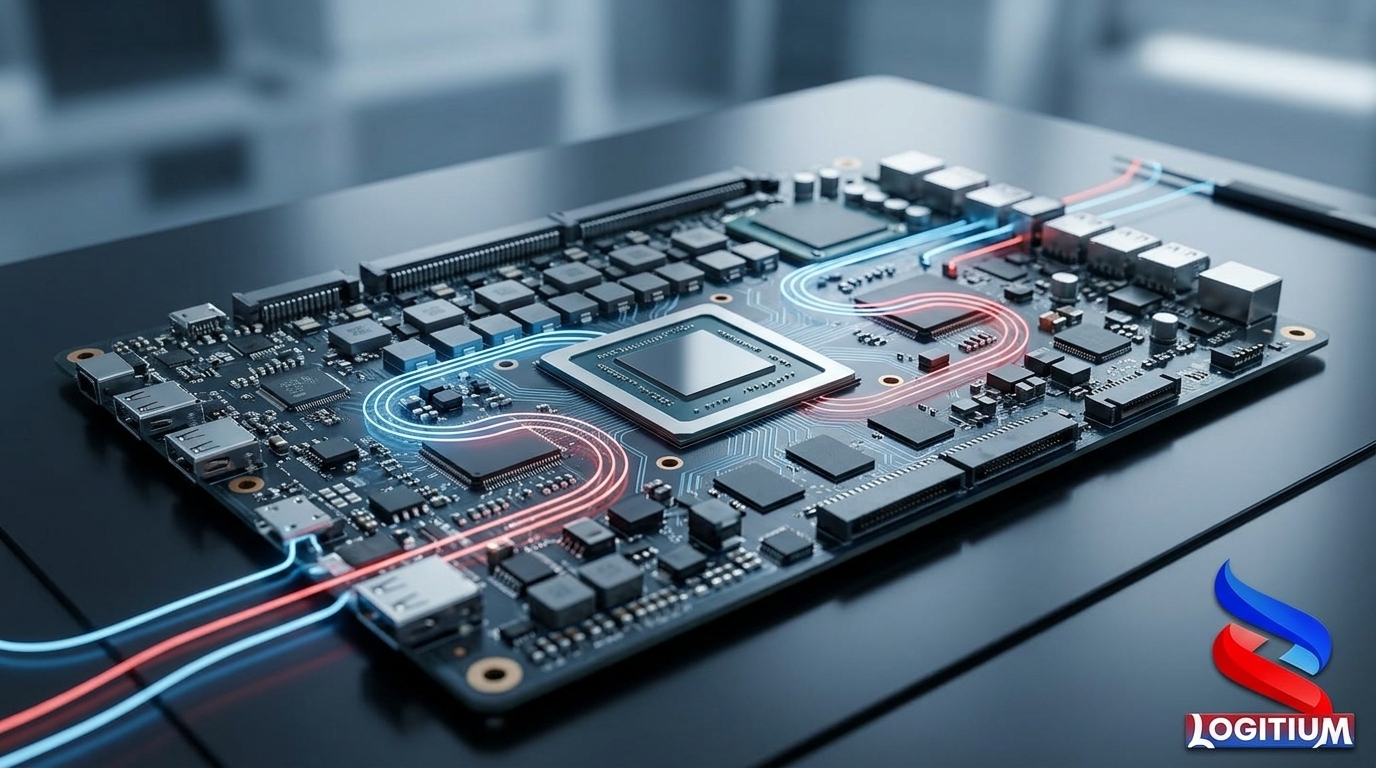
Before diving into the common causes of laptop logic board failure, it is essential to understand what this component actually does. In the world of PC repair, you might hear it called a motherboard. In the Apple ecosystem, it is known as a logic board. Regardless of the name, this piece of hardware is the central nervous system of your device. It houses the CPU, GPU, RAM (in many modern laptops), and the complex circuitry that allows every other component to communicate.
At Electronics Repair Blog | Tips & Guides | Logitium, we see logic board issues daily. Because these boards are comprised of thousands of microscopic traces and hundreds of surface-mount devices (SMDs), even a microscopic defect can lead to a total system failure. Identifying the root cause is the first step toward a successful component-level repair.
The Most Common Causes of Laptop Logic Board Failure
Logic board failure rarely happens without a reason. While some boards fail due to age, most issues are precipitated by environmental factors or electrical anomalies. Below, we break down the primary catalysts for logic board degradation.
1. Liquid Damage and Corrosion
Liquid damage is arguably the most frequent cause of logic board failure. Whether it is a splash of coffee or a high-humidity environment, moisture is the natural enemy of electronics. When liquid hits a powered logic board, it creates an immediate short circuit by bridging connections that should never touch.
However, the immediate short isn't the only threat. Over time, the minerals and impurities in the liquid lead to corrosion. This electrochemical reaction eats away at the copper traces and solder joints, eventually severing the connection entirely. At Logitium, we utilize ultrasonic cleaning and microscopic inspection to reverse these effects when possible.
2. Overheating and Thermal Stress
Laptops are designed to be compact, which naturally limits their ability to dissipate heat. When dust accumulates in the cooling fans or the thermal paste dries out, the internal temperature of the CPU and GPU skyrockets. Constant cycles of heating and cooling cause the board to expand and contract.
This thermal expansion can lead to "solder fatigue," where the Ball Grid Array (BGA) connections under the chips develop micro-cracks. Once a single point of contact is lost, the laptop may experience random shutdowns, graphical artifacts, or a total failure to boot.
3. Electrical Surges and Power Spikes
Your logic board relies on precise voltages to function. A sudden surge in electricity—caused by lightning, a faulty power grid, or a low-quality third-party charger—can overwhelm the Power Management Integrated Circuits (PMIC). If the protective capacitors or MOSFETs on the board cannot handle the spike, they will "pop" or burn out to protect the rest of the system. This often results in a laptop that is completely dead with no signs of life.
4. Physical Impact and Mechanical Stress
While the outer casing of a laptop is designed to be tough, the logic board inside is a rigid fiberglass plate. Dropping your laptop or even carrying it in a tightly packed bag can cause the chassis to flex. This mechanical stress is one of the common causes of laptop logic board failure that users often overlook. The flexing can snap tiny traces or dislodge sensitive components, especially near the hinges or the charging port.
5. Aging Components and Manufacturing Defects
Sometimes, a logic board fails through no fault of the user. Capacitors have a finite lifespan, and eventually, they may leak or lose their ability to hold a charge. Additionally, manufacturing defects—such as poor solder quality from the factory—can lie dormant for years before finally causing a circuit failure.
Symptoms of a Failing Logic Board
Identifying logic board failure can be tricky because the symptoms often mimic other hardware issues. Here is what to look for:
No Power: The laptop does not respond to the power button or charging cable.
Kernel Panics/Blue Screens: Frequent, random system crashes that aren't resolved by software updates.
Graphical Glitches: Lines on the screen, distorted colors, or a screen that stays black even though the fans are spinning.
Peripheral Failure: USB ports, the trackpad, or the keyboard suddenly stop working (often indicating a failure in the Southbridge or controller ICs).
Burning Smell: An immediate indicator of an electrical short on the board.
The Logitium Methodology: Component-Level Repair vs. Replacement
When you take a laptop to a manufacturer-authorized service provider, their standard solution for a failing board is a total replacement. This is often prohibitively expensive, sometimes costing 60-80% of the laptop's original value. At Logitium, we take a different approach.
How to Prevent Logic Board Failure
While you cannot prevent every possible failure, following a proactive maintenance schedule can significantly extend the life of your device. Our experts in Robbinsdale recommend the following framework:
The "Cool & Clean" Strategy
Annual Dusting: Use compressed air to clear out the vents every 6 months.
Thermal Repasting: For high-performance laptops, have the thermal paste replaced every 2-3 years to ensure optimal heat transfer.
Hard Surface Use: Never use your laptop on a bed or carpet, as these surfaces block airflow and act as insulators.
The Power Protection Protocol
OEM Chargers Only: Avoid cheap, unbranded chargers that lack proper voltage regulation.
Surge Protectors: Always use a high-quality surge protector or a UPS (Uninterruptible Power Supply) when charging.
Step-by-Step: What to Do If Your Laptop Fails
If you suspect you are dealing with one of the common causes of laptop logic board failure, follow these steps immediately to minimize damage:
Power Down: Force the laptop off by holding the power button.
Disconnect Power: Unplug the charger and, if possible, disconnect the internal battery.
Avoid the "Rice Trick": If liquid is involved, do not put it in rice. Rice does not stop corrosion; it only introduces dust into the ports.
Seek Professional Diagnostics: Take the device to a specialist who understands schematic analysis and micro-soldering.
FAQs About Logic Board Failure
Can a logic board be fixed after a liquid spill?
Yes, in many cases. If addressed quickly, professional ultrasonic cleaning and the replacement of corroded components (like capacitors and resistors) can restore full functionality.
Is it worth fixing a 5-year-old laptop's logic board?
This depends on the laptop's original specs and your budget. Since component-level repair is significantly cheaper than replacement, it is often a very viable way to get 2-3 more years out of a high-end machine.
Will I lose my files if the logic board fails?
On older laptops with removable SSDs, your data is safe. On modern laptops (like newer MacBooks) where the storage is soldered to the logic board, a logic board repair is often the *only* way to recover your data.
Conclusion: Trust the Experts at Logitium
Understanding the common causes of laptop logic board failure is the best defense against hardware downtime. Whether it’s managing heat, avoiding low-quality power supplies, or handling your device with care, prevention is key. However, when the unexpected happens, you don't have to settle for the high costs of a total board replacement.
At Logitium in Robbinsdale, MN, we specialize in the delicate art of component-level electronics repair. We don't just swap parts; we diagnose the specific failure point on your circuitry and fix it with precision. If your laptop is showing signs of logic board distress, contact us today for a professional diagnostic and let us bring your device back to life.
